

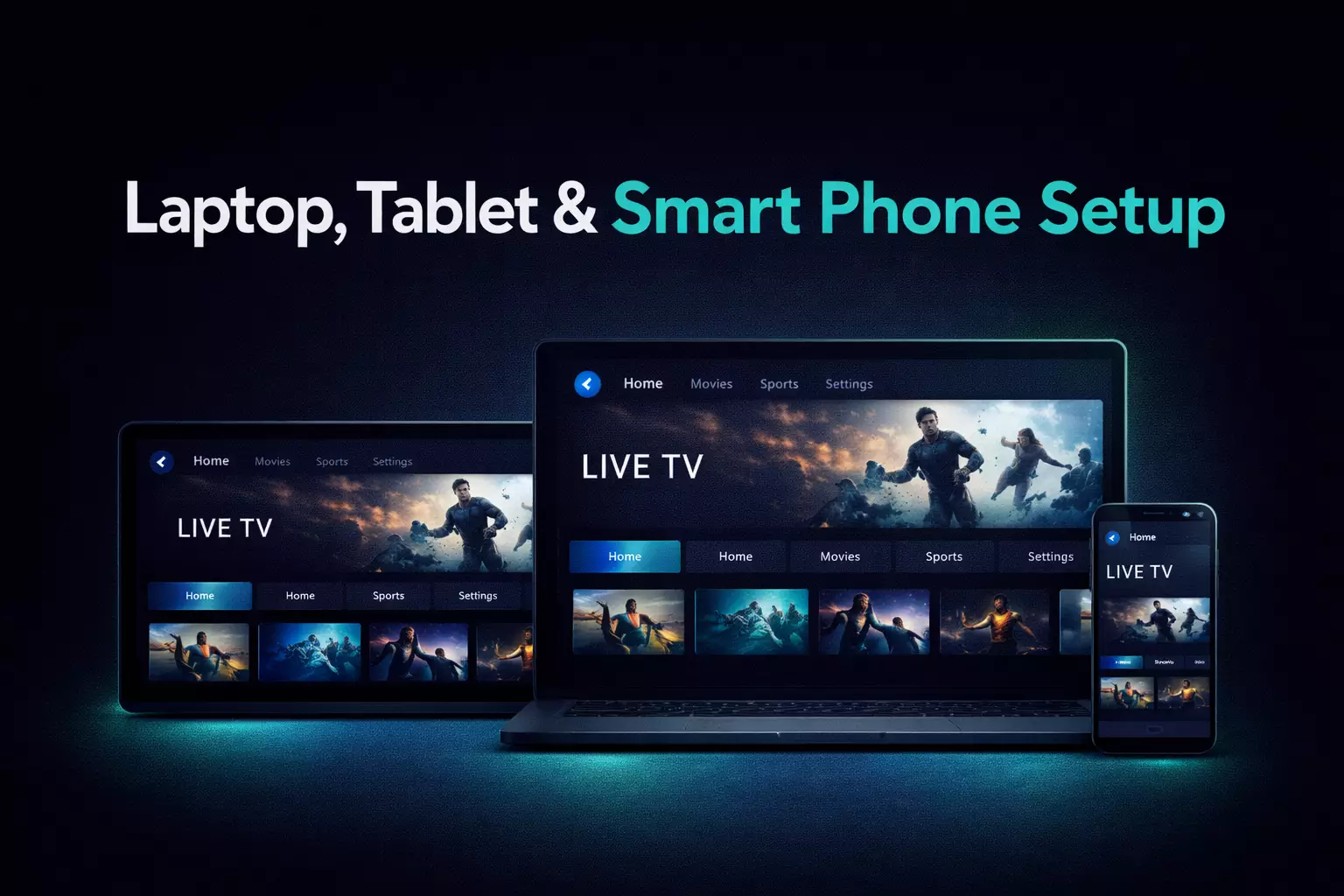
What do I need before installing a desktop IPTV player?
Prepare your computer, an internet connection and the account details from your provider. The Guru IPTV App is a free, non-commercial player with live TV, an EPG guide, movies and series. It displays what your provider supplies; installing it does not create an account or provide a channel package.
For Xtream Codes, have the server URL, username and password ready. For M3U/M3U8, keep the complete playlist link. Have your provider's XMLTV guide details available too. If these formats are unfamiliar, read the Xtream Codes and M3U guide before signing in.
Get all installers from the Guru IPTV App download page. Choose the package for the operating system that will run it. A Windows EXE, a Mac DMG and a Linux package are different installation routes, even when they lead to the same player.
How do I install the player on Windows?
- Open /download on the Windows computer and choose the EXE installer.
- Run the downloaded installer and follow its installation prompts.
- If Windows SmartScreen warns for this installer, select More info > Run anyway. The installer is not code-signed yet.
- Open the installed player and prepare your provider's login or playlist details.
The SmartScreen step belongs to installation, before account setup. Check that the file is the one you obtained through the official download page before continuing. The warning does not tell you whether your IPTV credentials are correct, and entering different credentials cannot change an installer prompt.
If the player opens but does not load content, move on to the account checks below. Repeating the installer is unlikely to clarify a mistyped server address. Note whether the problem occurs while installing, opening the app or loading your account so that you can describe the right stage.
How do I open the macOS version the first time?
- Use /download to obtain the macOS DMG.
- Open the DMG and follow the installation instructions on the download page.
- For the first launch, right-click the app and choose Open. It is not notarized yet.
- Once the player opens, enter the provider details using the appropriate login method.
The first-open instruction is specific to the app's current notarization status. Use it for the app obtained through the official page. Keep this separate from any error shown after submitting an IPTV account: macOS opening the app and a provider accepting a login are different checkpoints.
When preparing to use the Mac with a television, complete the first launch and sign-in on the computer screen first. You can then test the external display without also trying to solve an installation prompt from across the room.
How do I install the AppImage or .deb on Linux?
Linux offers AppImage and .deb downloads. Follow the instructions for the package you choose instead of mixing the two routes. The filenames below are placeholders: substitute the actual filename you downloaded and run the commands from its directory. Do not type a made-up filename and expect the package manager to find it.
- Download the AppImage or .deb from /download.
- For AppImage, make the file executable with
chmod +x ./file.AppImage, then launch it with./file.AppImage, replacing the filename in both commands. - For a .deb on a system that uses apt, run
sudo apt install ./file.deb, replacing the filename with the downloaded package. - Open the player and continue with your provider login.
If the terminal reports that a file does not exist, check the directory and spelling before downloading again. Preserve the ./ when referring to the local file. An installation command is not an IPTV login command; do not paste provider credentials into either example.
How do I add Xtream Codes, M3U and guide details?
- Choose the account format your provider supplied.
- For Xtream Codes, enter the server URL, username and password separately.
- For M3U/M3U8, enter the complete playlist address and add the supplied XMLTV EPG details where needed.
- Check a live entry and the EPG, then check movies and series if your account supplies them.
Keep the original server prefix and any port number. Remove accidental spaces around pasted values, but do not shorten a playlist address just because it looks complicated. If a link wraps across lines in a message, make sure you copied the entire address rather than only the visible first line.
Do not post a full playlist URL when asking for help. It may contain account credentials. Begin with your operating system, the login format and the error. Your provider can confirm the account details and status through a private support conversation.
How can I use a laptop connected to a TV by HDMI?
Think of HDMI as connecting the computer's picture and sound to another screen. The player still runs on the laptop, so install the Windows, Mac or Linux version for that laptop. You do not need to install its desktop package on the television just because you are using the TV as a display.
- Connect the laptop and TV with a suitable HDMI connection and select the matching TV input.
- Use the computer's display settings to mirror the laptop or extend the desktop.
- If using an extended desktop, move the player window onto the television.
- Check the computer's sound output and choose the TV or HDMI output if sound stays on the laptop.
- Read the guide from your normal seat and adjust the computer's display scaling if needed.
Test one change at a time. A blank TV input, a window left on the laptop and audio routed to the wrong output are separate problems. Keep the laptop accessible during setup rather than assuming the television remote controls the desktop app.
What should I check when playback or the guide fails?
First identify the stage. If installation failed, revisit the operating-system instructions. If the player opens but the account fails, check the supplied details and ask the provider to confirm account status. If content opens but the EPG is empty, check the XMLTV information and whether the provider supplies guide data.
For HDMI problems, first see whether the same content works on the laptop display. If it does, check the TV input, display arrangement and audio output. This comparison helps distinguish an external-display setup problem from an account or stream problem without repeatedly reinstalling the player.
Version 1.0.3 adds Get Guru IPTV with plans, prices, the free 24-hour trial, and WhatsApp and Telegram contact. The player remains separate from those offers. Compare Guru IPTV subscription plans if you need an account. For a broader player checklist, read how to choose an IPTV player. The app is open source under GPL-3.0 and based on Extreme InfiniTV.