

What is the Guru IPTV App, and does it include channels?
The app is the software you use to open a provider's content. A subscription is the separate service that supplies your account and streams. Installing the Guru IPTV App does not create a channel account, start a paid plan or give you a username and password. You can use a Guru IPTV subscription or another provider's login.
This distinction matters when you first open the player. An empty player is not a missing channel package waiting to be unlocked by reinstalling. You need your own connection details before there is anything to watch. The free player and the free 24-hour Guru IPTV service trial are also different things: the trial lets you test the separate service.
Which version should I use on my device?
Android phones, Android tablets, Android TV and Google TV use one APK. Fire TV uses that same APK, installed through the Downloader app. Choose by the operating system on the device, rather than assuming every television can install an Android package. Samsung and LG televisions use the browser version instead.
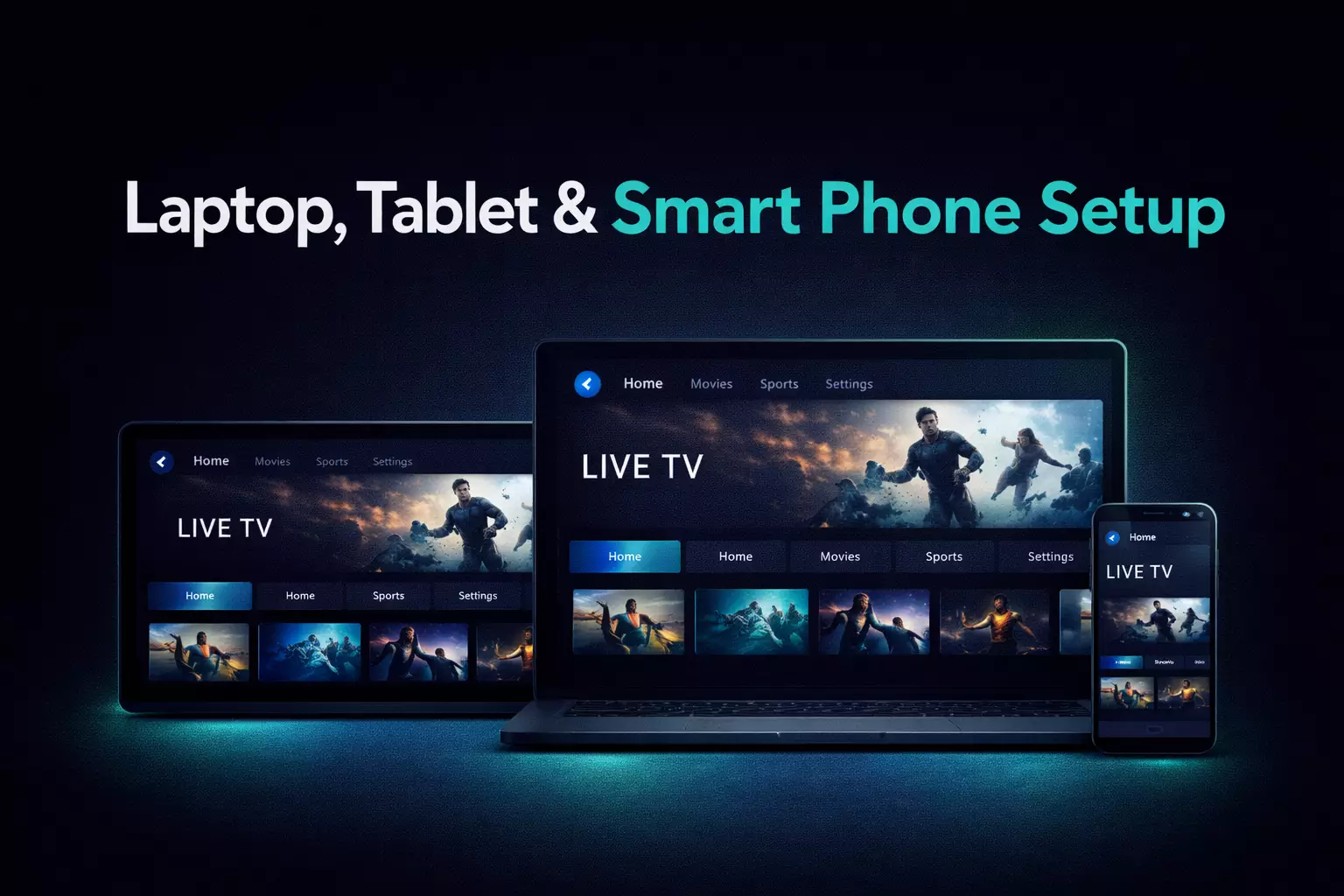
For computers, there is a Windows EXE installer, a macOS DMG, and Linux AppImage and .deb options. Samsung and LG TVs, iPhone and iPad use the web app at https://app.guruiptv247.com in a browser. Very old TVs from before 2021 may not work, so test the browser route on your actual television before planning around it.
Start at the official download and device guide page. Keeping this page as your starting point also avoids confusing a player download with an offer for a channel subscription.
What login details should I prepare first?
Ask your provider for either an Xtream Codes login or a complete M3U/M3U8 playlist link. With Xtream Codes, keep the server address, username and password together as three separate pieces of information. With a playlist, keep the full link intact. If you use an XMLTV EPG, have that guide address ready too.
Your app store account is not the same as your provider account. Do not substitute the email address used to download apps for a supplied IPTV username. If you are unsure which format you received, read Xtream Codes versus M3U before entering it.
Keep these details private. A long playlist address can contain account information, so avoid posting it in a screenshot or copying it into a public support discussion. For help, begin with your device, login method and the error you see.
How do I install it on Android TV or Fire TV?
- Open /download and choose the Android APK instructions for your device.
- On an Android phone, tablet, Android TV or Google TV, follow the device guide to install the APK.
- On Fire TV, use the Downloader app and follow the official instructions to obtain and install the same APK.
- Open the player and prepare to enter your provider's login or playlist details.
Use the Android TV and Firestick APK installation guide for the device-specific walkthrough. Use the Downloader code or short link shown on the download page rather than a number from an unrelated tutorial.
Complete installation before changing account details. That gives you two separate checkpoints: first the player opens, then the provider account loads. If installation fails, repeatedly editing your IPTV password will not address that stage of setup.
How do I get it on a computer or browser device?
- For Windows, get the EXE from /download and run the installer. It is not code-signed yet; if SmartScreen warns for that installer, the route is More info > Run anyway.
- For macOS, get the DMG. The app is not notarized yet, so right-click > Open the first time.
- For Linux, choose the AppImage or .deb instructions on /download.
- For Samsung or LG TV, open the web app in the TV browser. For iPhone or iPad, use the browser version; on iPhone, Safari > Share > Add to Home Screen adds a shortcut.
The Samsung and LG TV guide explains the browser route. An APK is for Android and Fire TV, so trying to transfer that file to a Samsung or LG television is not the installation method described here.
How do I sign in and check the guide?
- Choose the login method that matches the details your provider supplied.
- Enter the Xtream Codes server, username and password, or the complete M3U/M3U8 playlist address.
- Add your provider's XMLTV EPG details for the guide where needed.
- Check live TV and the EPG, then movies and series if your provider supplies them.
Copy addresses carefully and check for spaces introduced when pasting. Keep any supplied port number and the original address prefix. If an account fails to load, ask the provider to confirm the details and account status before treating it as an installation problem.
Guide information and content come from your provider. The player has sections for live TV, movies and series, but those sections do not promise that your particular account includes all three.
What does Get Guru IPTV show, and why does open source matter?
Version 1.0.3, released October 25, 2026, adds a Get Guru IPTV section. It shows plans and prices, the free 24-hour trial, and WhatsApp and Telegram contact options. On TVs it shows QR codes, so you can continue from your phone. This section describes the separate Guru IPTV service; it does not mean channels are bundled with the player.
Compare the subscription plans if you need a provider, or keep using your existing provider's details. Test your intended device during a trial so you can assess the complete setup before choosing a service.
The player is open source under GPL-3.0 and is based on Extreme InfiniTV. Open source makes the code available for inspection, which is useful when deciding what software to trust with account details. It is not a promise about a provider's streams, and it does not replace checking where you obtained the installer.